


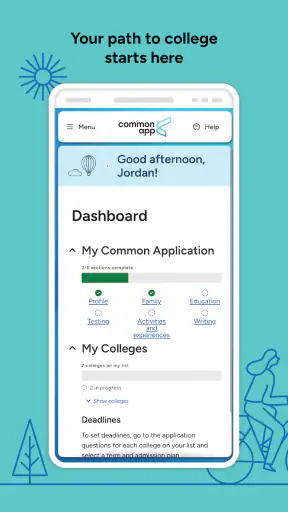
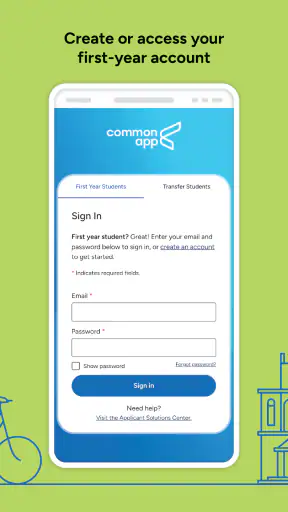
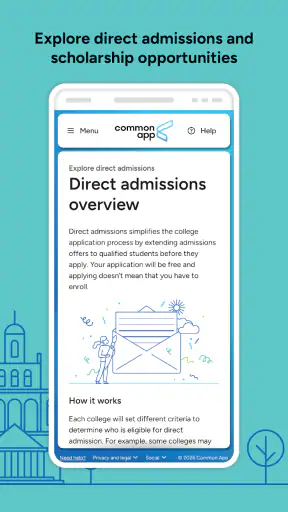
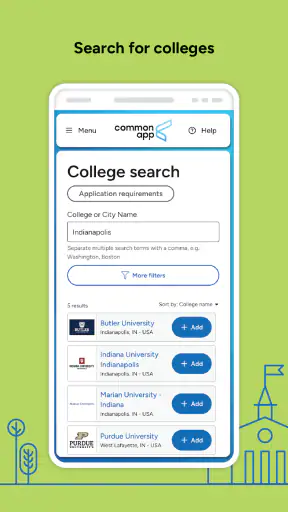
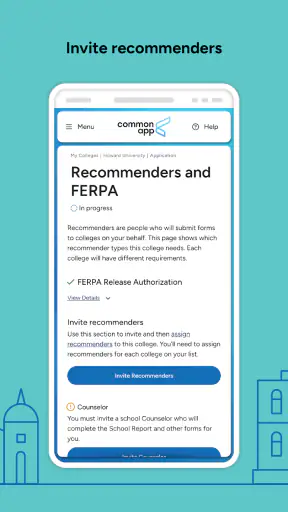
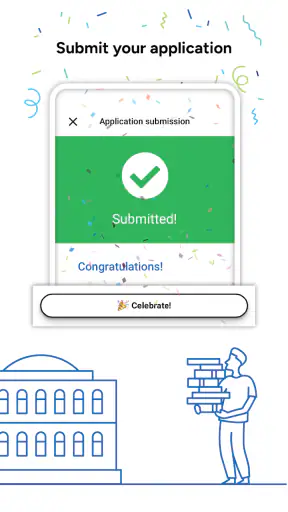
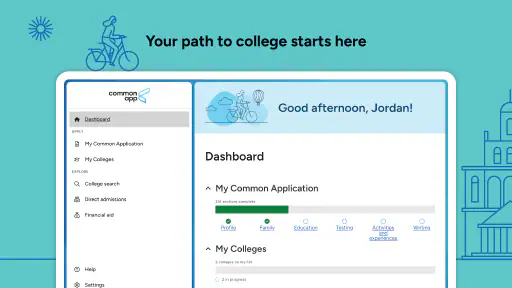
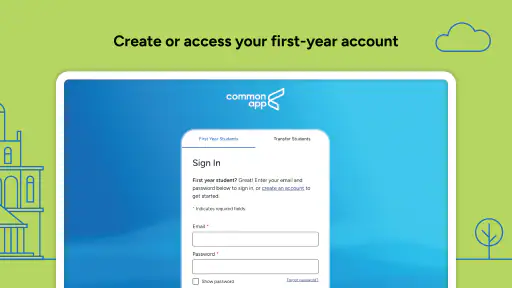
Applying to college is already a demanding process, and a mobile app can either make that process feel more manageable or add another layer of confusion. I spent time with Common App as an education app from The Common Application, looking at it not just as a digital form but as a tool people may use while tired, anxious, short on time, or working with different physical and sensory needs. My overall impression is that it is most useful as a companion to the wider application process, rather than a complete replacement for a computer, school counselor, or careful document review.
The basic appeal is clear: the app puts the Common Application experience on a phone, which can be useful when a student wants to check progress, review information, or keep the application moving away from a desk. It is free, rated for Everyone, and has reached more than a million installs. Those details make it approachable for families who want to begin without paying for another planning service, although the average rating of 3.3 suggests that the experience is not equally smooth for everyone.
How Common App works for different users and situations
Readability and navigation during a complicated application
The strongest part of the app is its focus. It is not trying to be a general study planner, essay editor, or college search encyclopedia. Its purpose is tied to the Common Application journey, so I found it easier to think of it as a place for checking application-related tasks than as an all-purpose admissions guide. That narrower role can reduce distraction for a student who already knows which colleges they are considering.
At the same time, college applications contain many types of information: personal details, education history, activities, essays, recommendations, and college-specific requirements. On a small screen, moving between these areas requires patience. I would not rush through a section simply because the interface makes it possible to continue. A phone is convenient for short checks, but the density of an application means that a larger screen is often more comfortable for reading long prompts and comparing what has been entered.
One practical habit helped me: I treated each visit as a review session rather than trying to complete everything in one sitting. I would open the app with one goal, such as checking a section or confirming what still needed attention, then stop before fatigue caused careless answers. This is especially useful for students with attention difficulties, because breaking the process into clearly defined visits makes the application feel less like one enormous task.
My main navigation advice is to use the app for progress checks and focused edits, not as the only place where you compose important writing. Drafting an essay in a separate writing tool makes it easier to revise, use spelling support, adjust text size, and keep a backup. The app can then be reserved for transferring or reviewing the finished material. That workflow also lowers the risk of losing a carefully written response if a session is interrupted.
The app was released on November 18, 2020, and its current version is 2.5. For someone using an older device, the minimum requirement of Android 6.0 is relevant. A device that meets the operating-system requirement may still feel less comfortable if its screen is small, its keyboard is cramped, or it struggles with long sessions. In other words, technical compatibility does not automatically equal a comfortable reading experience.
Motor and sensory considerations that affect everyday use
Using a phone can help people who cannot easily sit at a traditional desk. I could imagine a student checking an application while commuting, resting, or moving between school and home. Touch interaction is also familiar to many users, and short sessions can be less physically demanding than opening a laptop every time a small update is needed.
There is a trade-off, though. Typing long answers on a touchscreen can be tiring for people with limited hand control, tremors, joint pain, or repetitive-strain concerns. It can also be frustrating for anyone who makes frequent accidental taps. For that reason, I would pair the app with the phone’s own accessibility settings, such as larger text, magnification, voice input, or an external keyboard where available. These adjustments come from the device rather than something I would attribute specifically to the app, but they can change whether the experience is practical.
Voice input may be useful for short fields or quick notes, but I would always proofread names, school details, dates, and essay text afterward. Admissions information is not a good place to trust automatic transcription without checking it carefully. A student who relies on speech input should also consider composing in a tool where corrections are easier to see before moving the final text into the application.
Sensory comfort matters as much as physical effort. A student who is sensitive to visual clutter may prefer opening only the section they intend to review, using a quiet environment and reducing other phone notifications. Someone with reading fatigue may benefit from enlarging text at the system level and taking frequent breaks. I would not assume that a mobile layout is automatically easier for low-vision users; the smaller display can create more zooming and scrolling, even when the phone itself offers strong assistance features.
For users who depend on a screen reader, keyboard navigation, high-contrast presentation, captions, or other specific accommodations, I recommend testing the real tasks early rather than waiting until the deadline. The important question is not whether the app opens, but whether the user can reach, read, edit, and verify every part they need. If a particular step is awkward, switching to a browser or computer may be the more inclusive choice.
Situational access: where the phone version genuinely helps
The most realistic benefit is continuity. Imagine a student who meets a counselor at school, remembers an unfinished detail on the bus, and wants to check the application before the thought disappears. A phone-based option can make that small moment useful. The student does not need to wait until they return to a desk just to review progress or make a modest update.
It can also help families who share limited access to a computer. A student may be able to work in short periods on a personal phone rather than competing for a household laptop. That does not make the phone ideal for every task, but it can prevent the application from stopping completely when a larger device is unavailable.
Another useful scenario involves a counselor or parent helping with organization. I would not hand over the entire process and assume someone else will manage it. Instead, the student should remain the owner of the account and decisions, while a trusted adult helps create a checklist, review confusing wording, or identify information that needs to be gathered. The app is better used as one shared reference point than as a substitute for communication.
People with fluctuating energy may also appreciate short, repeatable sessions. On a good day, a student can work on a longer section using a computer. On a difficult day, they can use the phone to review a smaller item or check what remains. This “smallest useful action” approach is more realistic than expecting consistent productivity throughout the entire admissions period.
Situational access has limits. A weak connection, a nearly empty battery, a noisy environment, or a phone with limited storage can turn a convenient task into a stressful one. I would avoid leaving a major submission step until the last possible moment. Even when the app is available, the surrounding conditions may not be dependable enough for deadline-night work.
What the app cannot remove from the process
Common App does not make college applications simple by itself. The difficult parts are often organizational: finding accurate school information, deciding how to describe activities, requesting recommendations, preparing essays, and checking requirements for individual colleges. A mobile interface can provide access to the application, but it cannot make those decisions for the student.
This is where the app should be compared with usual alternatives. A web browser on a laptop is generally better for long reading, side-by-side reference material, file organization, and extended writing. A notes app is better for collecting ideas and drafting. A calendar or task manager is better for reminders. A school counselor is better for context and personal guidance. Common App sits between these tools: it connects the student to the application itself, but it does not replace the tools that make preparation easier.
I also would not use it as the only record of important work. Keep copies of essays and a simple private checklist of completed sections. Save relevant information in an organized place that the student can access independently. This is not because I expect a specific problem; it is simply sensible protection when an application represents months of effort.
The rating of 3.3 from roughly thirteen hundred ratings gives me a balanced expectation. The app is clearly useful to a substantial number of people, but it is not a product I would describe as universally effortless. A student who expects every admissions task to feel as easy as messaging or shopping may be disappointed. The process itself is demanding, and mobile entry adds its own compromises.
There is also an emotional barrier. Application language can make students worry that every answer must be perfect before they continue. The app cannot solve that anxiety, and repeated checking may even encourage over-editing. I found it healthier to decide in advance what “reviewed” means: accurate personal details, complete required material, readable writing, and a final check by the student or a trusted adult. Beyond that point, endless reopening may not improve the application.
Who should use it, and who should choose another route
I would recommend the app to students who want a free mobile way to stay connected with their college application, especially those who regularly move between school, home, and other responsibilities. It is also a reasonable option for families with limited computer access, provided they can use another device when long writing or detailed checking becomes uncomfortable.
It is a particularly good fit for a student who benefits from short sessions and clear boundaries. Open it to check one area, make a planned correction, or review progress, then return later. That approach is more effective than scrolling through the entire application whenever anxiety appears.
I would be more cautious for students who need extensive assistive technology or who find touchscreen typing physically difficult. They should test the exact tasks they need early and keep a browser-based alternative available. Students who are still exploring colleges may also need separate research and planning tools, because this app is not a complete replacement for broader admissions guidance.
Parents should resist turning the app into a monitoring tool. The student’s voice and ownership matter, particularly in essays and personal information. A supportive adult can help with structure and proofreading, but the application should still reflect the student. That distinction is important for users who already feel overwhelmed by adults, deadlines, and institutional language.
For students with reading or concentration challenges, I suggest preparing before opening it: gather the information needed for the specific task, set the phone’s text and display options, silence unrelated alerts, and work in a short block. For students with motor limitations, an external keyboard or voice input may make drafting easier, while a larger screen may be preferable for final review. These small changes do not erase every barrier, but they make the app more adaptable to real life.
My inclusive verdict after using the mobile approach
Common App is best understood as an access point, not the entire admissions support system. Its free availability, Everyone age rating, and mobile format make it approachable, and the large install base shows that many students find value in having the application process close at hand. The developer, The Common Application, has created something that can fit naturally into short moments when a computer is not nearby.
My recommendation comes with a clear condition: use the phone for convenience, but give important writing and final verification the space they deserve. Larger screens, separate drafting tools, calendars, saved copies, and human support each solve problems that the app alone cannot. That combination is also more inclusive because it lets users choose the method that matches their abilities, energy, device access, and surroundings.
In the end, I would install it if I were applying through the Common Application and wanted a practical way to stay engaged between longer work sessions. I would not rely on it blindly, and I would not judge accessibility by whether the first screen feels simple. The meaningful test is whether each person can complete their own required tasks accurately and with reasonable effort. Used that way, it is a useful companion for the college journey, with enough flexibility to help many students but enough friction that planning a backup workflow remains wise.


